Get the app

Download BezPOS for Android, Windows & macOS

Android for the floor and a phone camera scanner. Windows or macOS for a desk till.

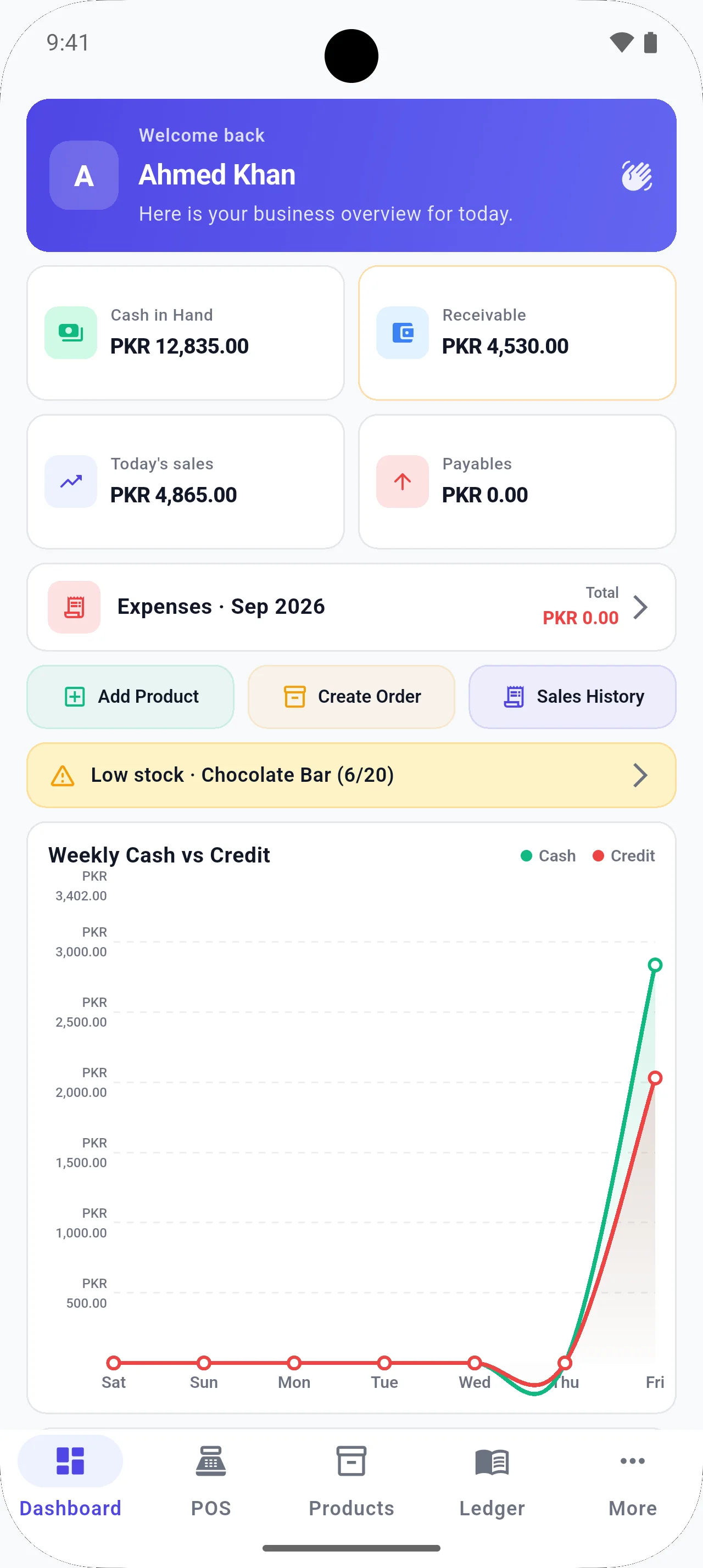
BezPOS dashboard showing cash in hand, receivables, today’s sales, payables, expenses, low stock, and a cash versus credit chart.
Today’s cash, credit, expenses, and low-stock alerts on one screen.

Which version should I use?

Android Windows macOS
Where it runs Android phones and tablets Windows 10 and Windows 11 PCs Mac computers running a supported macOS release
Best fit The shop floor. Camera barcode scanning is available on supported Android devices. A fixed counter. USB barcode scanners and receipt printers are commonly used. A fixed counter. Printer and scanner support depends on the Mac and how the hardware connects.
How you install Google Play .exe installer .dmg
Price Free. The Android app contains ads. Free. The Windows build does not request ads. Free. The Mac build does not request ads.
Shop data Stays on that device. There is no live sync. Google Drive backup is optional, and it is how a copy moves to another device.

Android

Android

Android phones and tablets

Camera barcode scanning is available on supported Android devices.

Download

Install

  1. Open BezPOS on Google Play from your Android phone or tablet.
  2. Tap Install and wait for the app to download.
  3. Open BezPOS and start adding products. Day-to-day POS work does not need internet.
Windows

Windows

Windows 10 and Windows 11 PCs

Current version
2.0.0
File size
21 MB

External USB barcode scanners and receipt printers are commonly used on Windows counters.

Download

Install

  1. Download the Windows installer (.exe) from this page — it starts immediately.
  2. Run the installer and follow the on-screen steps.
  3. Launch BezPOS from the Start menu. Connect a barcode scanner or printer if you use them.

Mac

macOS

Mac computers running a supported macOS release

File size
50 MB

Printer and scanner support depends on the Mac model and how the hardware connects.

Download

Install

  1. Download the Mac build (.dmg) from this page — it starts immediately.
  2. Open the downloaded file and move BezPOS to Applications if prompted.
  3. Launch BezPOS. If macOS asks for permission to open the app, confirm from System Settings.

Windows SmartScreen or macOS Gatekeeper warning?

The Windows installer is not Authenticode-signed yet, so SmartScreen can warn before it runs. The Mac build is not notarized yet, so Gatekeeper can block it the first time you open it.

Download the file only from the BezPOS downloads page. On Windows, SmartScreen includes a way to continue after you confirm the file came from this site. On a Mac, allow the app from System Settings if macOS blocked it. If the file did not come from this site, do not open it.

Questions: baloxtech@gmail.com

After you install

  1. Add products — one by one, in bulk, or from XLSX.
  2. Set units and opening stock.
  3. Start selling. Internet is not required for normal POS work.
  4. When you want a copy off the device, back up to Google Drive.

Installation and hardware help

Get started

Need help installing?

If the Windows or Mac installer does not open, contact support and we will send the current build.

Download
Get it on Google Play